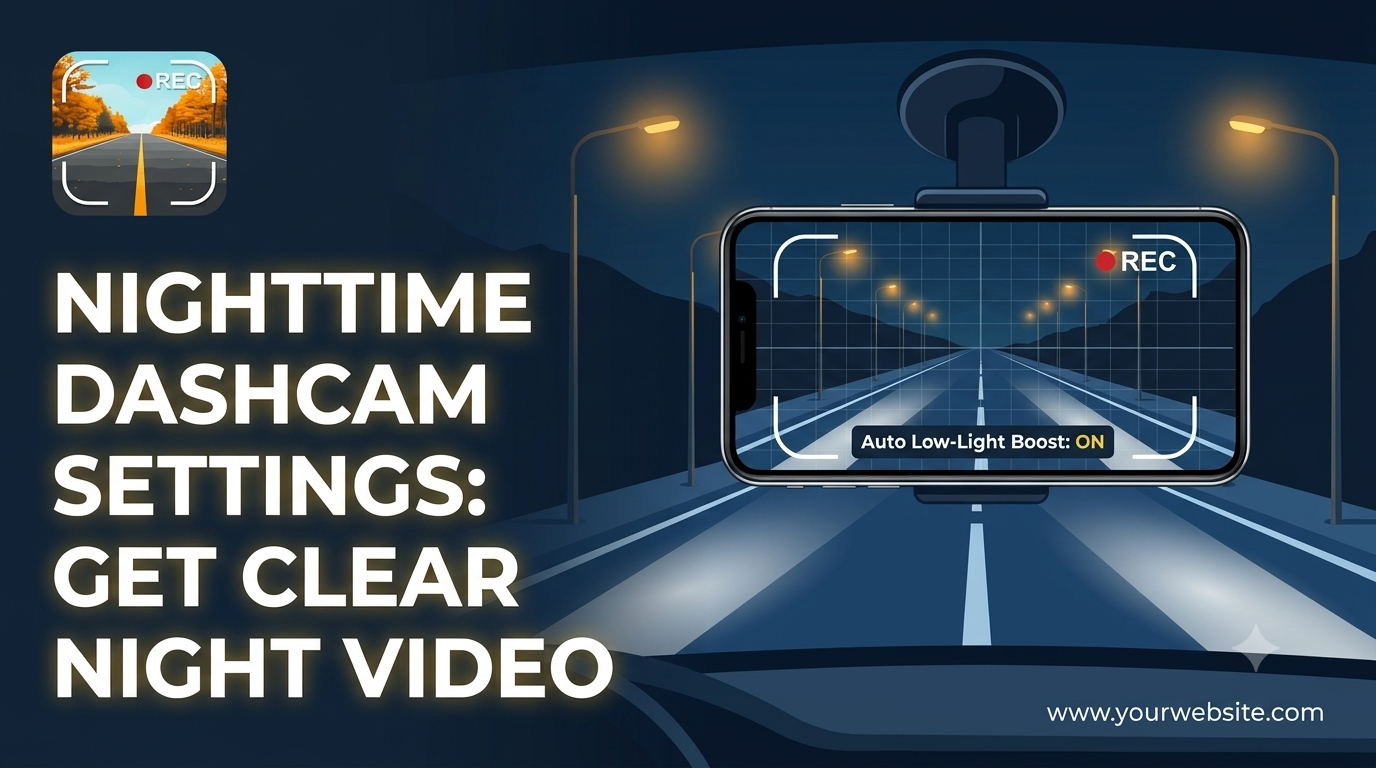
Nighttime Dashcam Settings Guide: Get Clear Night Video
Introduction
Nighttime dashcam settings guide helps everyday drivers capture usable footage after the sun goes down. In this article you’ll learn how to tweak resolution, frame rate, and mounting so that low-light video remains clear enough to review later. We’ll also show where Car Camera’s built-in options fit into a practical nighttime recording workflow, and we’ll answer the most common questions about smartphone dashcam night mode.
Choose the Right Resolution for Nighttime Clarity
The best resolution for night recording balances detail with sensor noise. Higher pixel counts give sharper edges, but they also amplify grain when light is scarce. For most drivers, 1080p (1920×1080) at a moderate bitrate provides the sweet spot: you retain enough detail to read license plates while keeping the image smoother than 4K at night.
When you set Car Camera to 1080p, the app automatically selects a video bitrate that matches the chosen frame rate. If you prefer a lower resolution to save storage, 720p can work, but expect reduced readability of distant objects.
Key considerations when picking resolution:
- Lighting conditions - bright streetlights favor higher resolution; dim rural roads benefit from a slightly lower setting to reduce noise.
- Phone sensor size - larger sensors handle high resolution better in low light.
- Storage capacity - 1080p consumes roughly twice the space of 720p per minute of recording.
NOTE Selecting a resolution higher than 1080p rarely improves night visibility on a typical smartphone sensor and may drain the battery faster.
Optimize Frame Rate and Bitrate for Low Light
Dashcam frame rate night settings directly affect motion smoothness and exposure time. A lower frame rate (15-20 fps) lengthens each sensor exposure, allowing more light to reach the pixel and reducing grain. However, too low a frame rate can make fast-moving traffic appear choppy.
For most commuters, 20 fps offers a good compromise: the exposure is long enough to brighten the scene, yet motion remains fluid enough to track sudden events. Pair this with a video bitrate night of at least 4 Mbps to preserve detail without overloading storage.
When adjusting these parameters in Car Camera:
- Open the settings menu and choose “Video Quality.”
- Set Resolution to 1080p.
- Select Frame Rate → 20 fps.
- Enable “High Bitrate” for night mode if the option appears; otherwise, keep the default high-quality setting.
If you notice the video becoming too dark, try dropping the frame rate to 15 fps and increasing the bitrate slightly. Conversely, if the footage looks jittery, raise the frame rate to 25 fps and accept a modest loss in brightness.
Enable and Adjust Night Vision Settings in Car Camera DVR
Car Camera does not label any feature as “Night Mode,” but it provides smart low-light adjustments that can be toggled. The app automatically detects reduced ambient light and raises the ISO internally, which brightens the image at the cost of some noise.
To make the most of these adjustments:
- Open Settings → Advanced.
- Turn on Auto Low-Light Boost (if available).
- Manually set Video Bitrate Night to a higher value to keep detail when the app raises ISO.
Because the app does not expose manual ISO or exposure sliders, rely on the automatic boost and complement it with proper mounting (see next section).
TIP Keep the phone’s screen brightness low while recording; a bright screen can cause additional heat, which may increase sensor noise in prolonged night sessions.
Positioning and Mounting Tips for Better Night Capture
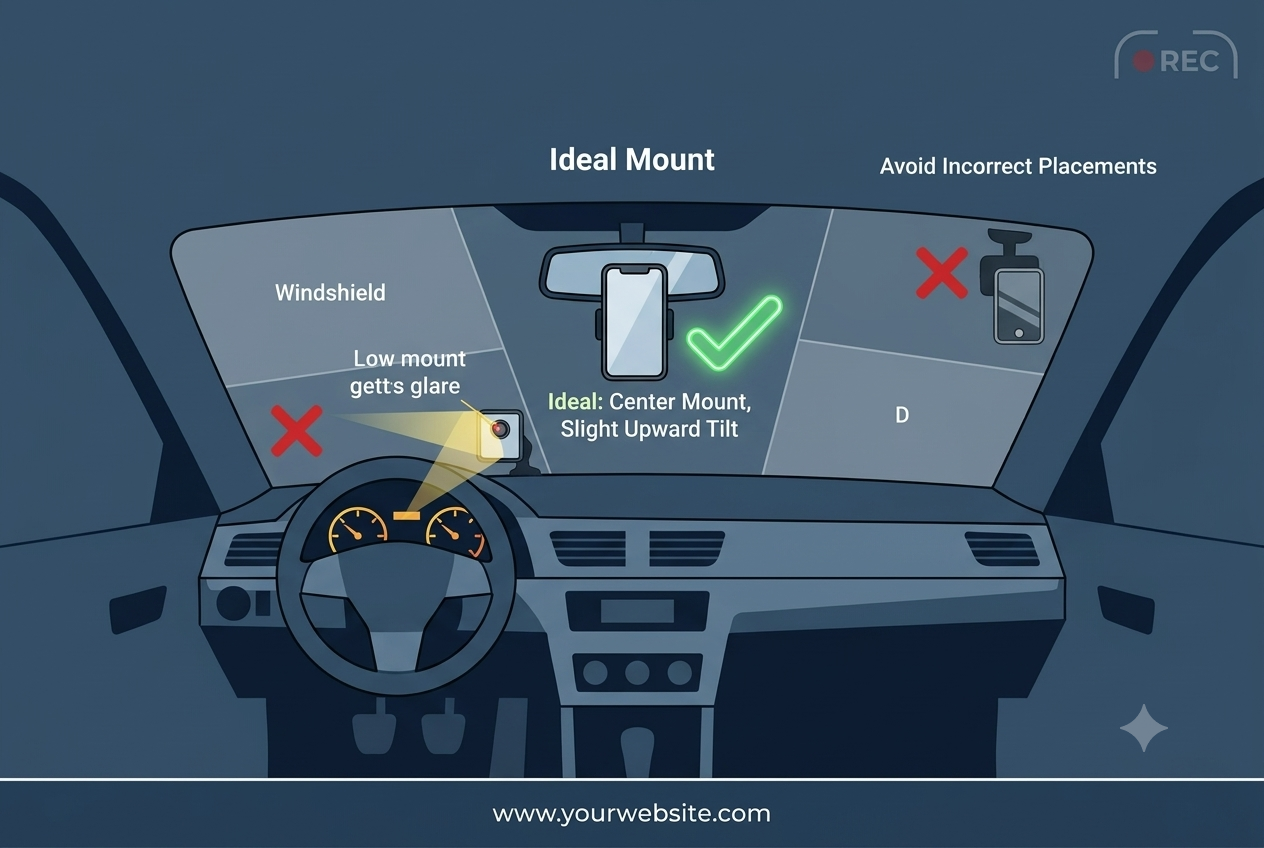
Even the best software cannot compensate for a poorly placed camera. Dashcam mounting at night should prioritize a clear view of the road while minimizing glare from streetlights and on-board displays.
Ideal mounting position:
- Center of the windshield, just behind the rearview mirror. This spot offers the widest field of view and reduces distortion.
- Angle the phone slightly upward (2-3 degrees) so the horizon sits near the top third of the frame. This captures more of the road ahead without sacrificing the sky, which often contains useful lighting cues.
Mounting checklist:
- Use a stable suction cup or adhesive mount that does not shift when the car vibrates.
- Ensure the phone’s camera lens is unobstructed by the windshield wiper arm or vehicle interior trim.
- Avoid placing the phone near bright interior lights (e.g., dashboard illumination) that can cause lens flare.
- If you frequently drive on poorly lit routes, consider an external LED dashcam accessory that clips to the mount; however, Car Camera itself does not control external LEDs, so you’ll need a separate power source.
Proper positioning also reduces battery drain night recording because the sensor does not have to work as hard to compensate for extreme angles or glare.
FAQs
How can I improve night video quality on a smartphone dashcam?
Start by setting the resolution to 1080p, lower the frame rate to 15-20 fps, and enable any auto low-light boost the app offers. Combine these settings with a centered windshield mount and avoid direct glare from interior lights.
What resolution and frame rate are best for low-light recording?
1080p at 20 fps is generally optimal for most drivers. It provides enough detail while allowing longer exposure per frame, which brightens the image without excessive noise.
Does Car Camera DVR have a night mode or low-light setting?
Car Camera does not label a feature as “Night Mode,” but it includes an automatic low-light boost that raises ISO when ambient light drops. Activating this option in Settings → Advanced gives the best possible night performance from the phone’s sensor.
How should I mount my phone for optimal night footage?
Mount the phone in the center of the windshield, just behind the rearview mirror, and tilt it slightly upward. Use a firm suction cup or adhesive mount, keep the lens clear of wipers, and shield the view from interior light sources.
Can I use external lights with Car Camera DVR to enhance visibility?
External LEDs can be attached to a dashcam mount, but Car Camera itself does not control them. If you add an LED, power it separately and aim it to illuminate the road without creating lens flare.
Key Takeaways
- Choose 1080p resolution for the best balance of detail and low-light performance.
- Set frame rate to 15-20 fps and increase bitrate to keep night footage smooth.
- Enable Auto Low-Light Boost in Car Camera’s advanced settings.
- Mount the phone centrally on the windshield, slightly tilted upward, and avoid interior glare.
- Consider an external LED only if you need extra illumination; it must be powered independently.
Conclusion
A well-tuned nighttime dashcam settings guide turns a regular smartphone into a reliable night-vision recorder. By selecting the right resolution, adjusting frame rate and bitrate, activating Car Camera’s low-light boost, and mounting the phone correctly, everyday drivers can capture clear, actionable footage after dark. Implement these steps on your next evening commute and you’ll have video that’s both watchable and useful.
Get Started with Car Camera
Ready to try the settings for yourself? Install Car Camera, switch to 1080p, enable the low-light boost, and follow the mounting tips above. You’ll notice the difference in just a few drives. Start Using Car Camera today and capture night journeys with confidence. https://carcamera.appaspect.com/
Further Reading
- Night vision dashcam - Overview of night-vision technologies used in dashcams.
- Low light performance - How sensors handle limited illumination.
- Vehicle lighting regulations (US) - Official guidance on vehicle lighting standards.
- Smartphone camera basics - General information on Android camera capabilities.
- Road safety statistics - Government data on nighttime accidents.