Best Smartphone Dashcam Settings for Road Trips - 2026 Guide
Introduction
The best smartphone dashcam settings turn a regular phone into a reliable travel recorder for everyday drivers and road-trip enthusiasts. In this guide we walk through video resolution, frame rate, GPS overlays, camera orientation, and segment length so you can capture every mile without draining storage or battery. By the end you’ll know exactly how to configure the Car Camera app for crystal-clear footage that’s easy to review after the journey.

Optimal Video Resolution Settings for Clear Road Trip Footage
Choosing the right resolution is the first step toward the best smartphone dashcam settings. Higher resolution gives more detail, but it also consumes more space and can tax the phone’s processor.
- 1080p (1920×1080) - This is the sweet spot for most road trips. The Car Camera app records in full HD, delivering sharp lane markings and license plates while keeping file sizes manageable.
- 720p (1280×720) - Use this when you need to stretch storage on ultra-long trips or when the phone runs on a lower-end processor. The picture remains usable for incident review, though fine details may blur.
- 480p (640×480) - Reserve for very short clips or when you must conserve battery above all else; image quality drops noticeably.
[!TIP] Record in 1080p whenever possible; modern phones handle the bitrate without overheating on typical highway speeds.
When you set the resolution in Car Camera, the app automatically adjusts the bitrate to match, so you don’t have to manually tweak that value. For most users, optimal video resolution dashcam means staying at 1080p for the entire trip and only dropping to 720p if you anticipate exceeding 8-hour continuous recording without offloading files.
Best Frame Rate Choices to Balance Quality and Storage on Long Drives
The frame rate determines how many images per second are captured, directly influencing both smoothness and storage consumption. The best smartphone dashcam settings for frame rate depend on road conditions and how you plan to review the footage.
- 30 fps - Ideal for highway cruising and steady traffic. It provides fluid motion while keeping the file size roughly 30-40 % lower than 60 fps.
- 60 fps - Choose this for winding mountain roads or when you want slow-motion replays of sudden maneuvers. Expect about double the storage use of 30 fps.
- 15 fps - Only for extreme storage constraints; the video can appear choppy and may miss quick events.
The Car Camera app lets you toggle between these rates in the settings menu. For a typical 6-hour road trip, a 30 fps setting at 1080p yields about 2-3 GB of data, which most modern phones can handle without filling up the internal drive.
[!NOTE] Frame rate also affects frame rate dashcam storage calculations: higher fps = larger files, so plan your segment length accordingly.
How to Configure GPS and Speed Overlays for Maximum Utility
A dashcam is more than just video; the overlay of location and speed turns raw footage into a searchable log. The best smartphone dashcam settings for GPS overlay involve three key options: map view, speed units, and coordinate precision.
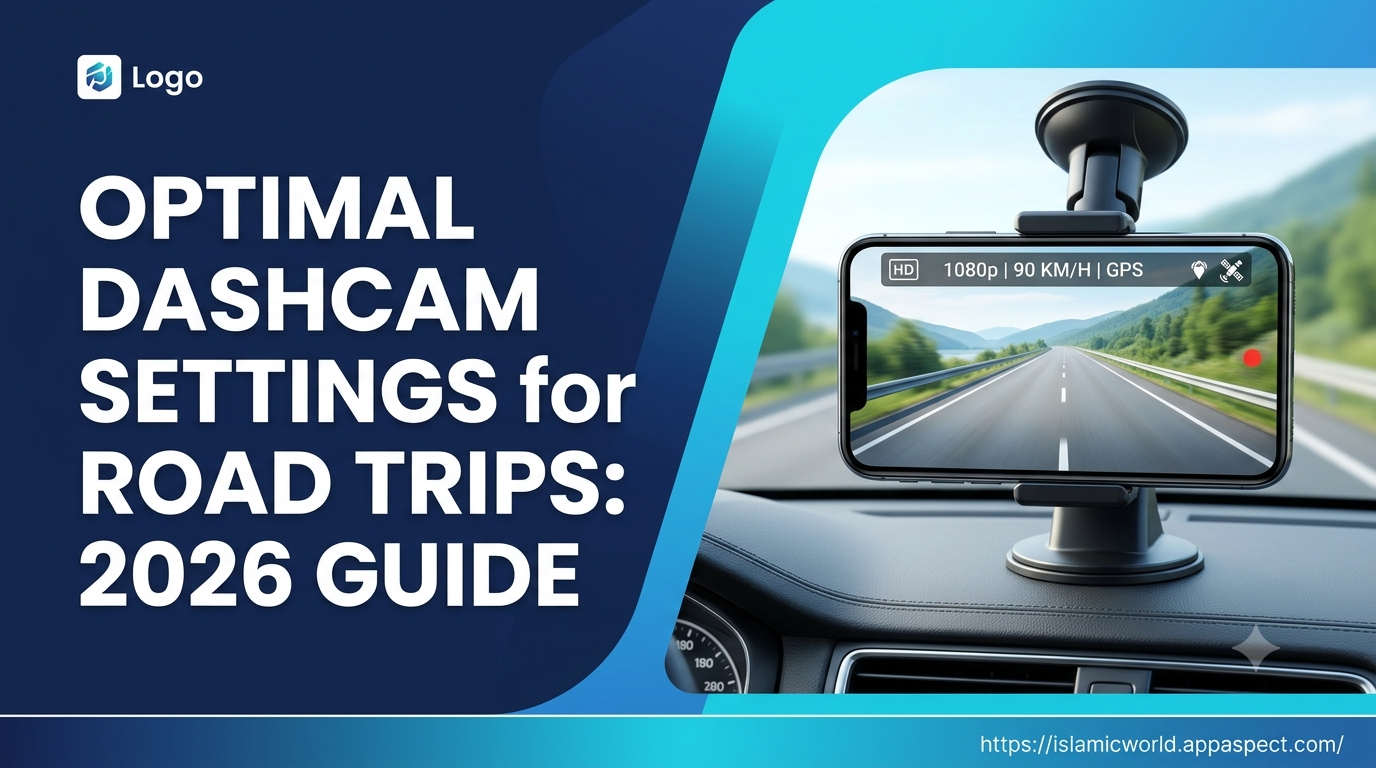
- GPS overlay activation - Turn this on in Car Camera to embed latitude, longitude, and timestamp directly onto each frame.
- Speed display - Select KM/H or MPH based on your region; the app updates the speed reading in real time, which is helpful for post-trip analysis.
- Coordinate format - Use decimal degrees for easier import into mapping tools if you plan to export the data later.
When enabled, the overlay appears as a thin banner at the top of the video, keeping the road view unobstructed. For long journeys, consider setting the overlay opacity to 70 % so the information is readable without distracting from the scenery.
[!IMPORTANT] Enabling GPS does increase battery draw slightly; pair the Car Camera app with a phone mount that has a power source for trips over four hours.
Choosing Front vs Rear Camera Modes for Different Driving Scenarios
Most smartphones have both a front-facing and a rear-facing camera. Deciding which to use depends on the angle you need and the lighting conditions of your route.
Front camera dashcam - Best for capturing the driver’s view, especially in rideshare or delivery scenarios where interior footage is valuable. The front lens usually handles low-light better, making it suitable for night drives.
Rear camera dashcam - Ideal for recording the road ahead, which is the traditional dashcam perspective. The rear lens typically offers higher resolution and a wider field of view, perfect for highway cruising and scenic routes.
Car Camera supports front rear camera dashcam mode, allowing you to switch on either lens or record both simultaneously if your phone hardware permits. For a typical road trip, start with the rear camera for the majority of the drive and switch to the front camera during stops to capture conversations or passenger reactions.
FAQs
What video resolution should I use for dashcam recordings on a smartphone?
For most road trips, set the app to 1080p. It balances clarity and storage, ensuring license plates and road signs are legible while keeping file sizes reasonable.
How often should I change the segment length in a dashcam app?
A segment length dashcam app setting of 5-10 minutes works well for long drives. Shorter segments prevent a single corrupted file from wiping out hours of footage and make it easier to locate specific events.
Can I record both front and rear cameras simultaneously on Car Camera DVR?
Yes, Car Camera allows simultaneous recording if the phone’s hardware supports dual-camera capture. Activate the front-rear mode in the app’s camera selection menu.
Does Car Camera DVR support GPS speed overlay in KM/H?
Absolutely. The GPS overlay includes a live speed readout that can be switched between KM/H and MPH in the settings panel.
How does frame rate affect storage usage on a phone dashcam?
Higher frame rates increase the number of frames per second, which directly raises the bitrate. For example, moving from 30 fps to 60 fps roughly doubles the storage requirement for the same resolution and duration.
Key Takeaways
- 1080p is the default optimal resolution for most trips; drop to 720p only when storage is tight.
- 30 fps offers smooth playback with moderate storage; use 60 fps for winding roads or slow-motion needs.
- Enable GPS overlay and select the appropriate speed unit to turn video into a searchable log.
- Choose the rear camera for forward road view; switch to the front camera for interior footage or low-light conditions.
- Set segment length to 5-10 minutes to protect against file corruption and simplify navigation.
Conclusion
The best smartphone dashcam settings combine a clear 1080p resolution, a balanced 30 fps frame rate, active GPS overlays, and the right camera orientation for each segment of your journey. By fine-tuning these parameters in Car Camera, you capture high-quality footage that’s easy to store, review, and share-making every road trip both memorable and documented.
Ready to Try It Yourself?
Start using Car Camera today to apply these settings on your next adventure. The app’s built-in controls let you adjust resolution, frame rate, GPS overlay, and camera mode in seconds, giving you confidence that every mile is recorded exactly the way you need. Download Car Camera and hit the road with peace of mind.
Further Reading
- Dashcam - Wikipedia - Overview of dashcam technology and typical features.
- Road safety - Wikipedia - Context on why recording journeys can be useful for incident analysis.
- National Highway Traffic Safety Administration (NHTSA) - Official guidelines on vehicle safety and data recording.
- Google Android Developers - CameraX - Technical background on smartphone camera APIs.
- Apple Developer - AVFoundation - Details on iOS video capture capabilities.